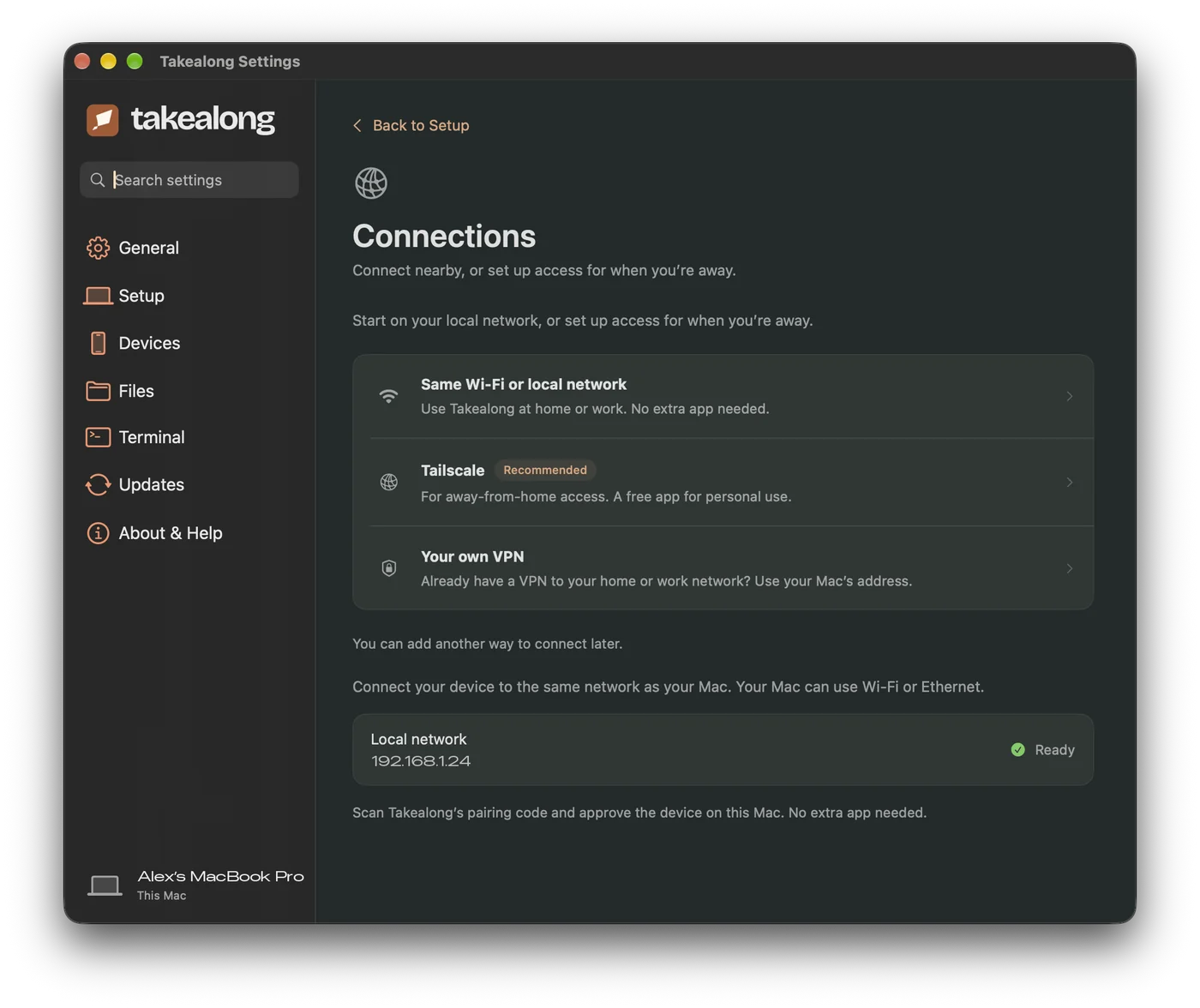
Same Wi‑Fi
Works out of the box at home or work. Your Mac can be on Wi‑Fi or Ethernet. No extra app needed.
 takealong
Setup guide
Ten minutes at your Mac, once. After that you can open your Mac’s apps from your iPhone or iPad wherever you are.
You need an Apple silicon Mac on macOS 15 or later, and an iPhone or iPad on iOS 18 or later.
Download it for Mac, move it to Applications and open it. Takealong lives in your menu bar as a small kite.
Get it from the App Store. Every feature is free for your first seven days.
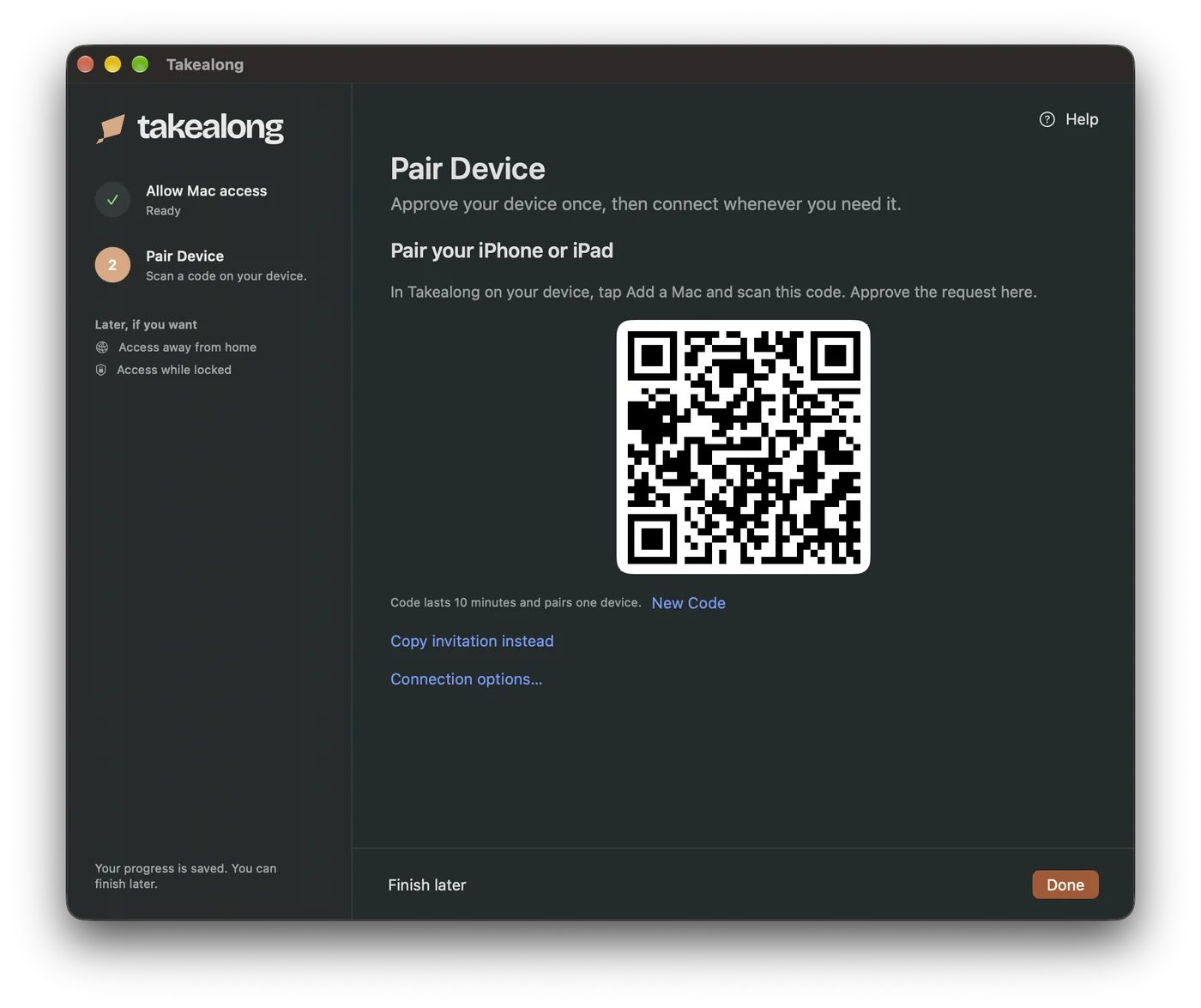
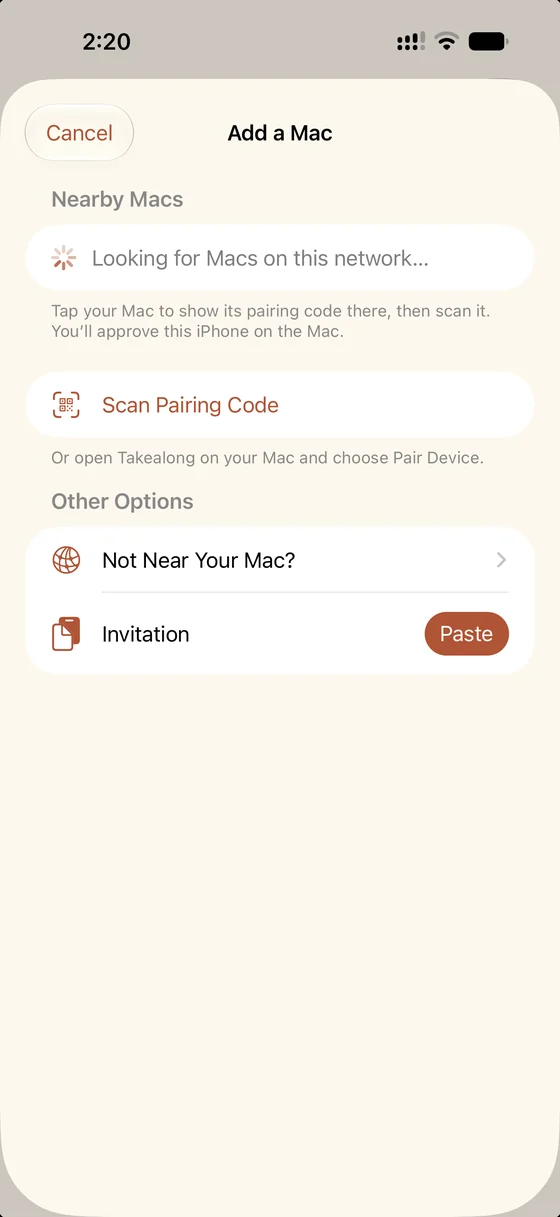
On the Mac, choose Pair Device to show a code. On your phone, tap Add a Mac, then tap your Mac under Nearby Macs or Scan Pairing Code. Approve the phone on your Mac the first time. After that they remember each other: no more codes.
Not near your Mac? Use Copy invitation instead on the Mac and Paste it on your phone.
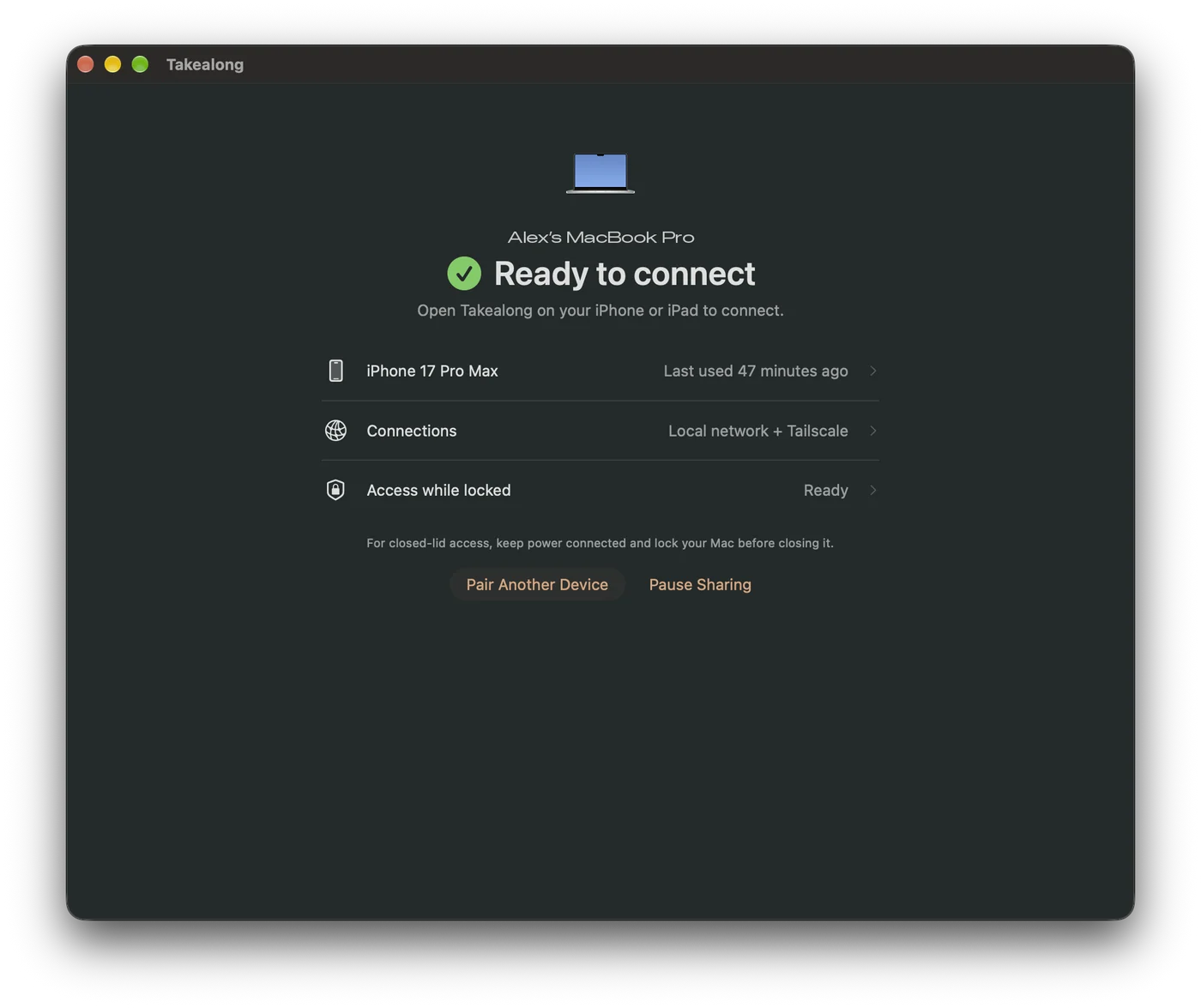
Your paired Macs appear under Your Macs. Tap one to connect. On the Mac, Ready to connect means it’s waiting for you.

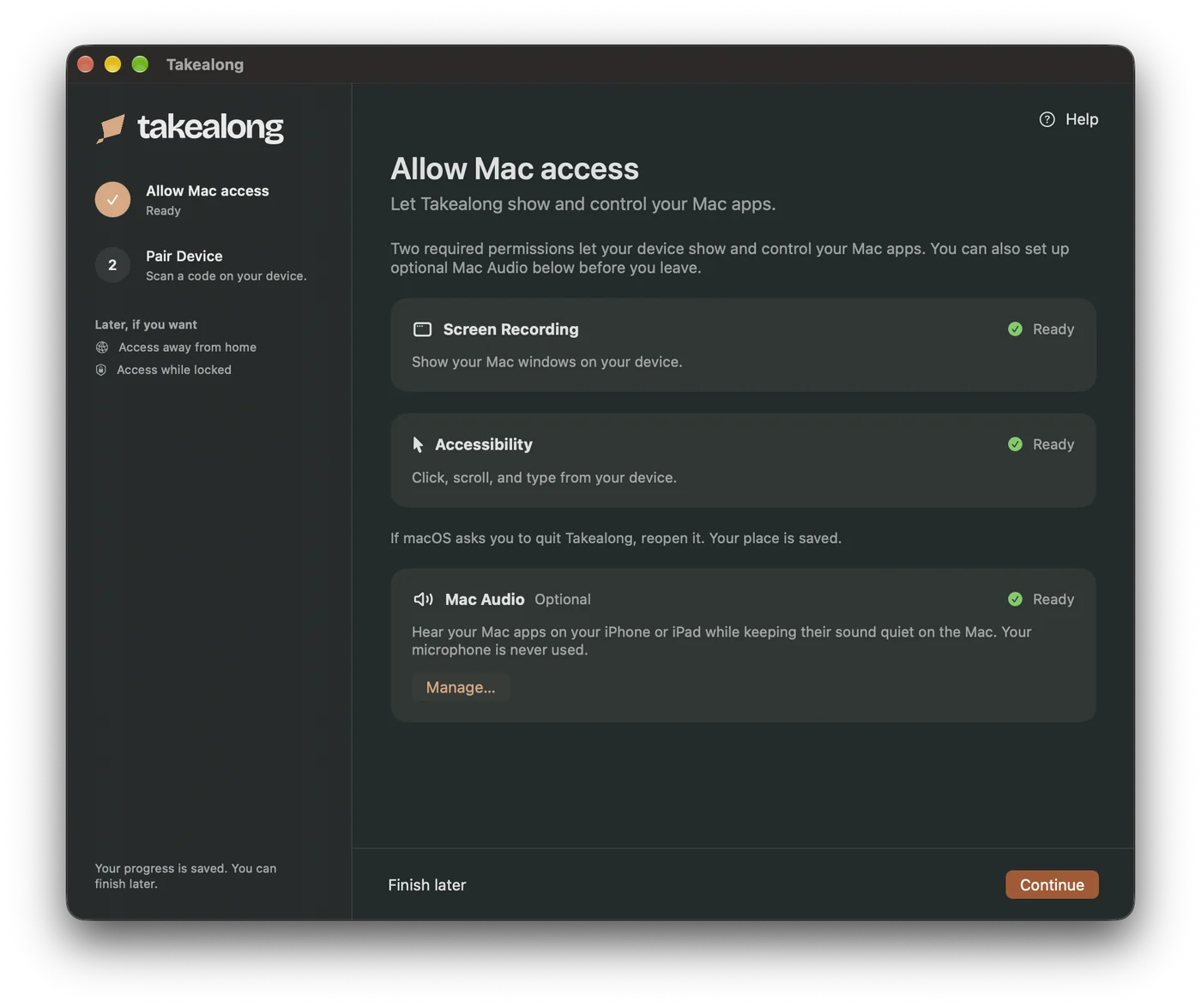
macOS asks you to allow these once, in System Settings → Privacy & Security. The Mac app walks you through each one.
Open the kite in the menu bar and choose Settings. Setup shows what’s ready at a glance.
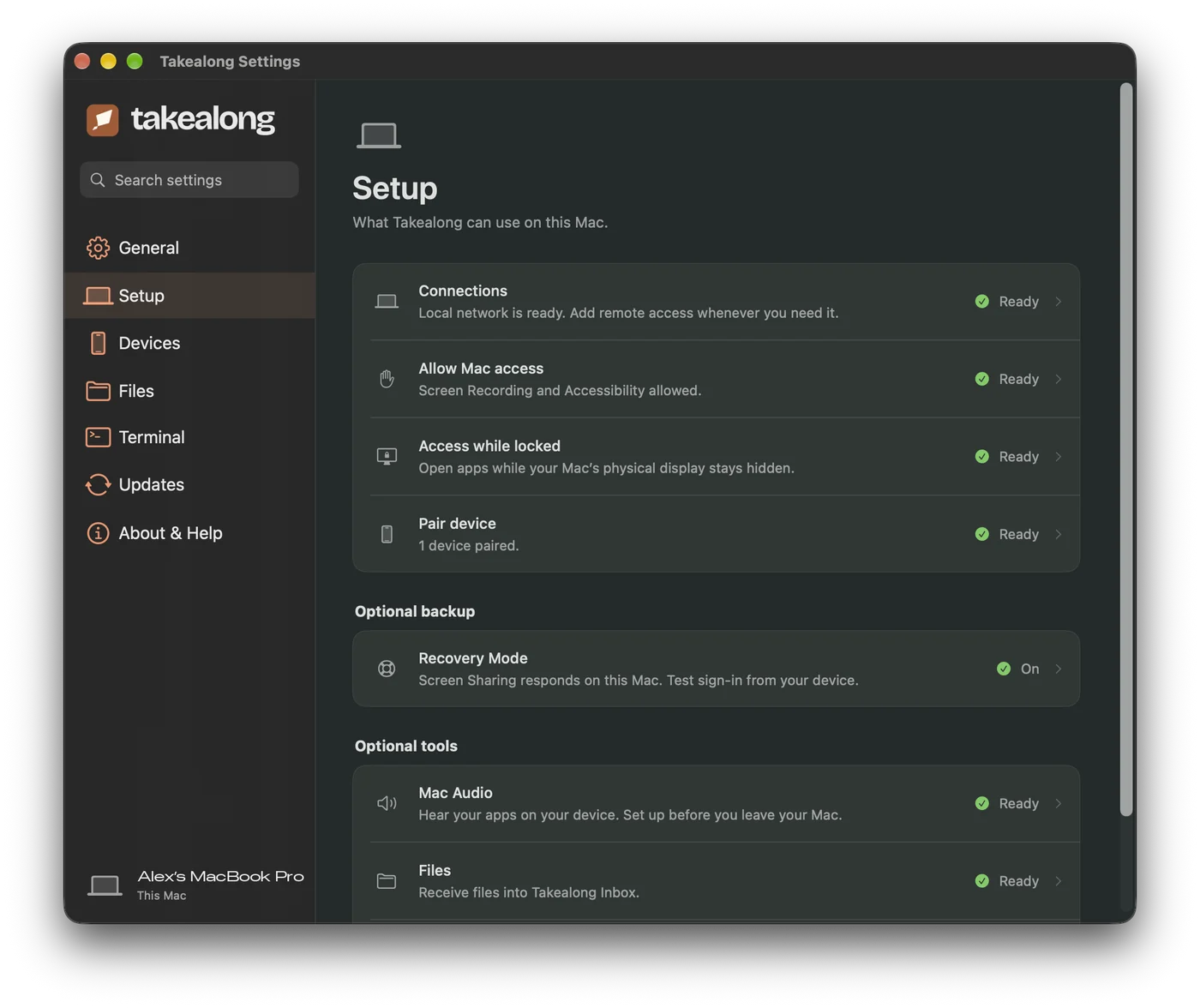
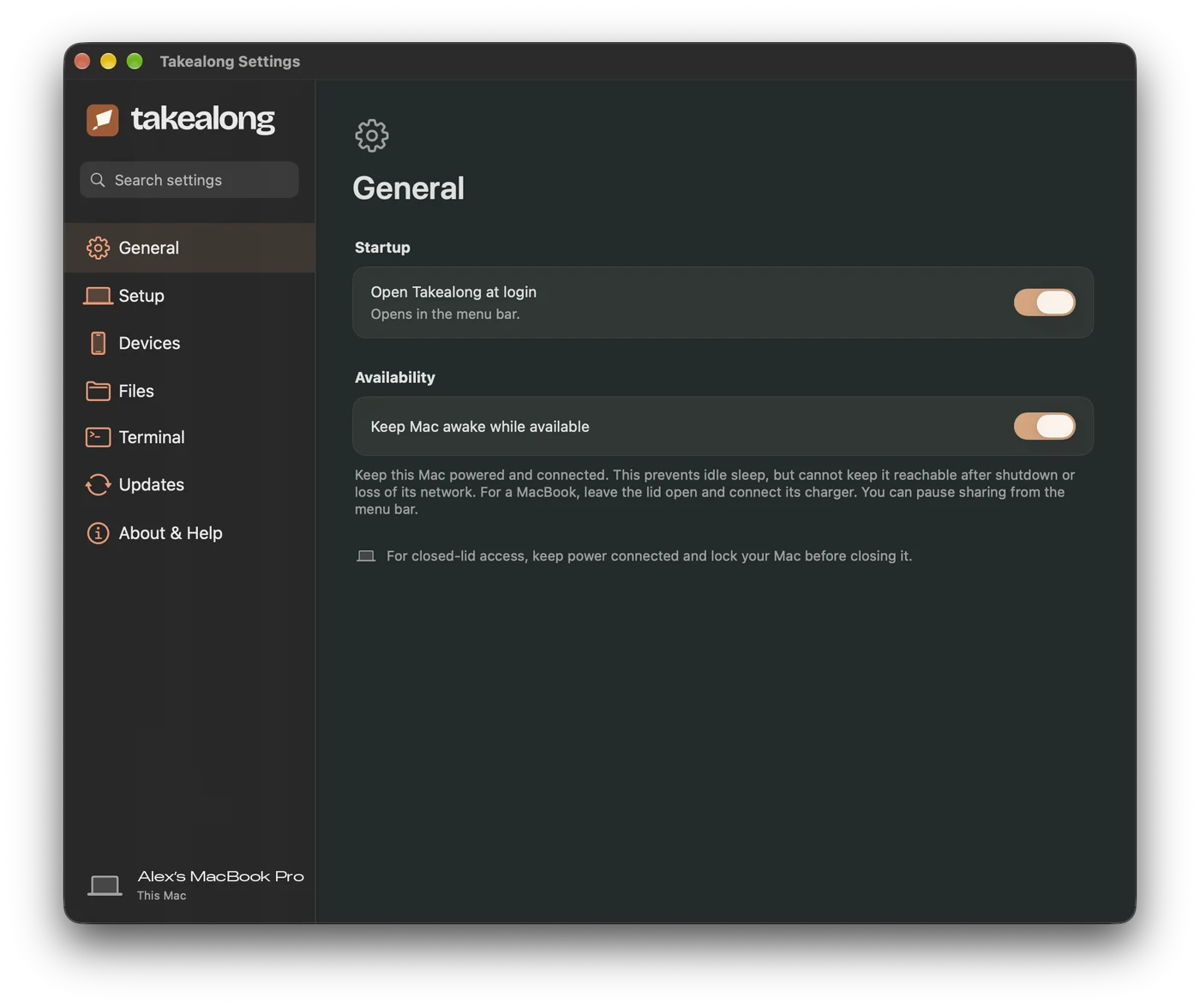
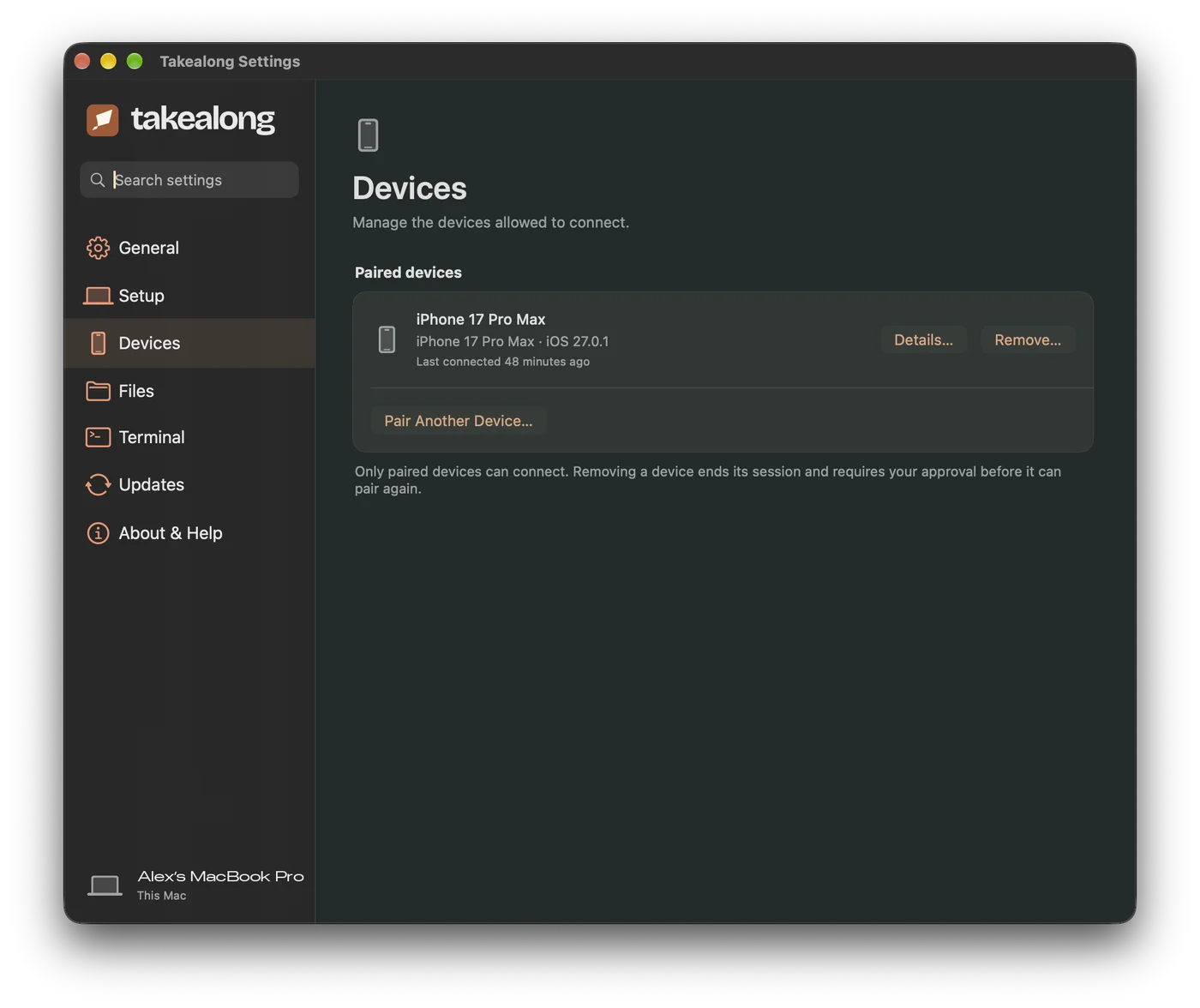
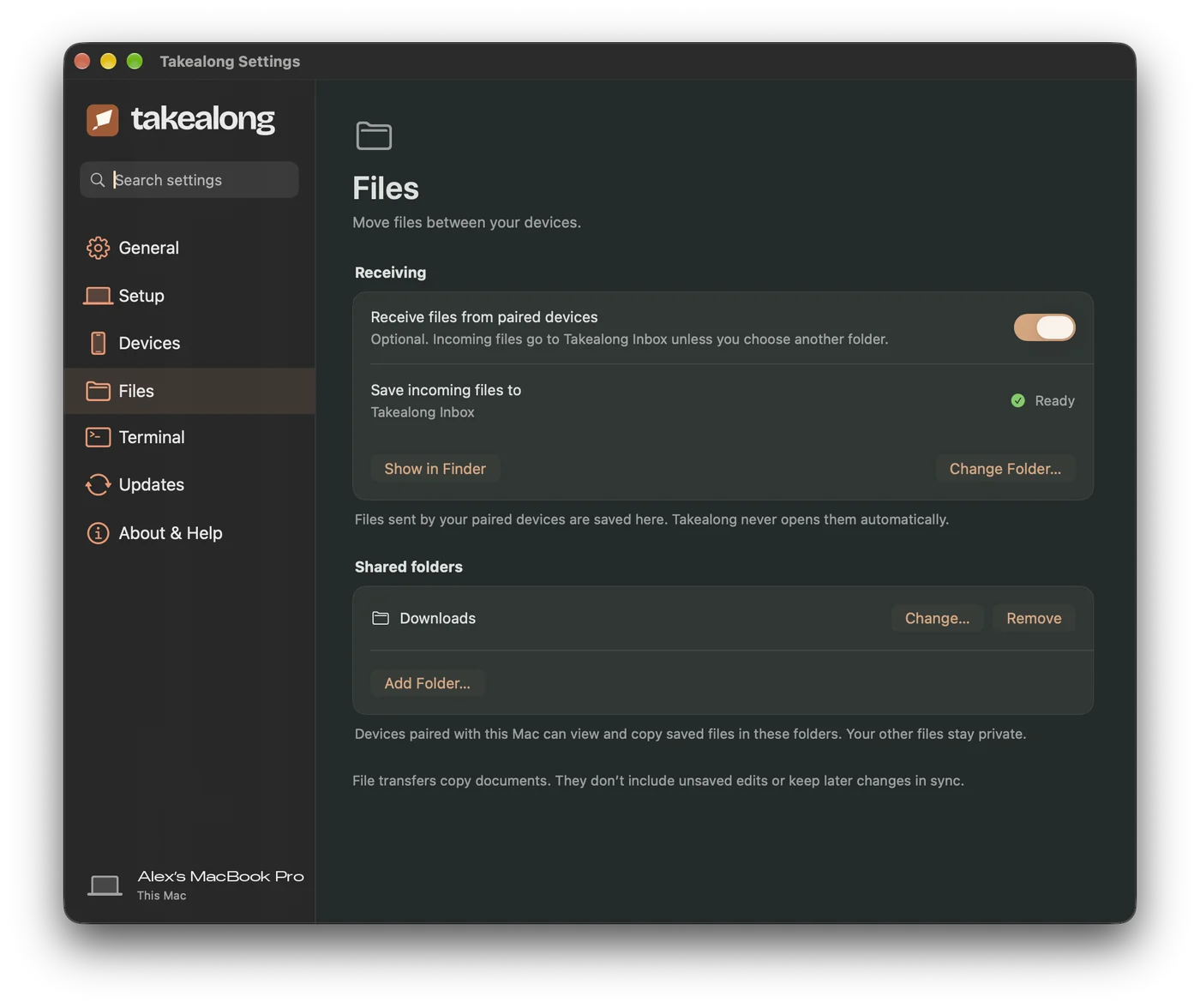
Works out of the box at home or work. Your Mac can be on Wi‑Fi or Ethernet. No extra app needed.
A free app for personal use that links your devices privately.
Already have a VPN to your home or work network? On your phone, open the Mac’s Connection Details → Add Address. Takealong checks the address reaches the same Mac before saving it.
Takealong doesn’t host computers or pass your screen through its servers. Your screen and controls travel between your own paired devices, encrypted.
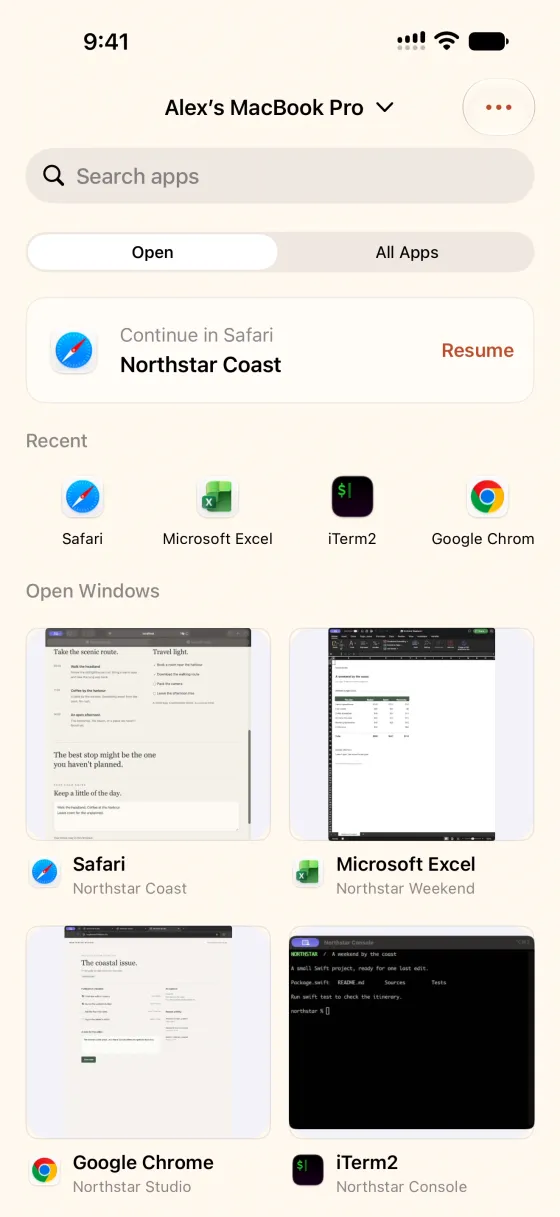
Pick from your recent apps, open windows or All Apps. Continue in… takes you back to what you had open last. Use Search apps to find anything else.
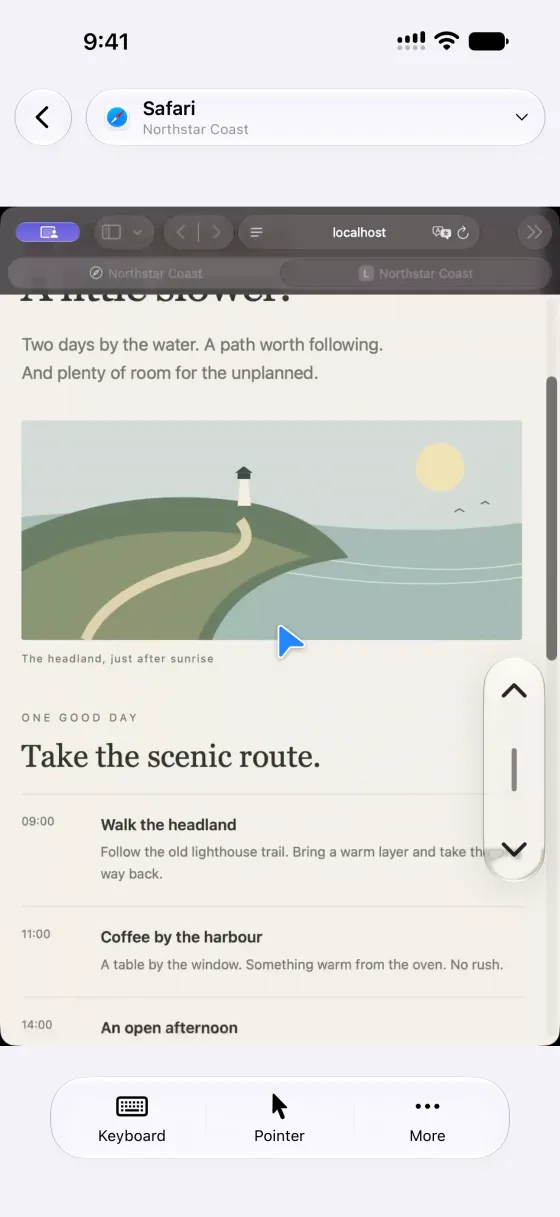
Supported windows resize to fit your phone. Swipe in from the edge for a one-handed scroll control; drag it, and it slides away when you’re done. Prefer your left thumb? There’s a left-handed option in Settings.
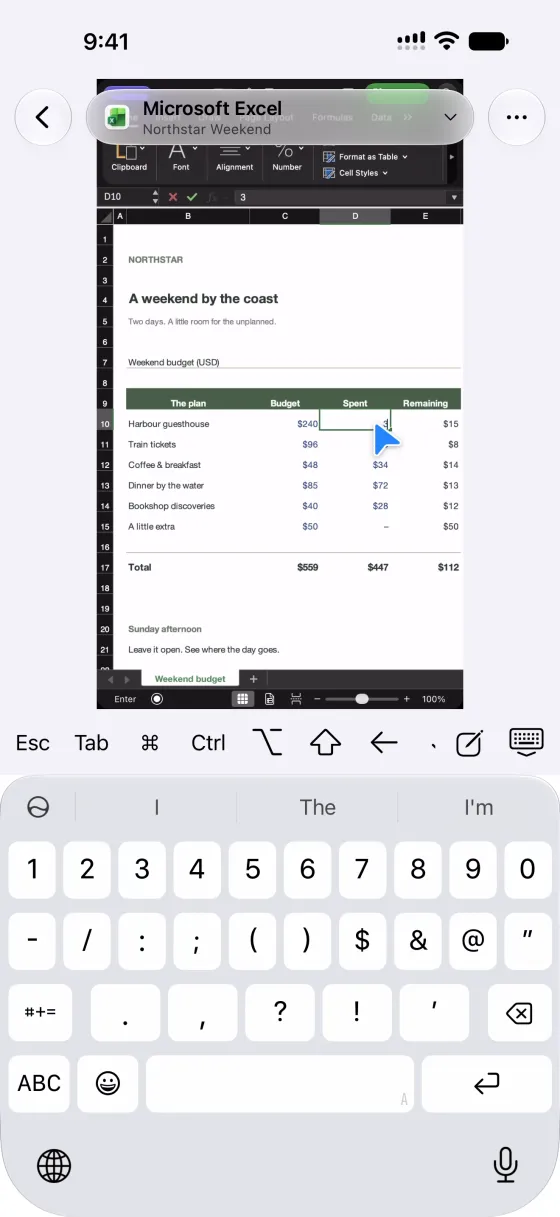
Tap Keyboard to type. The row above it has Esc, Tab, ⌘, Ctrl, Option and arrows. Pointer switches between Direct Touch and Trackpad. On iPad, a Bluetooth keyboard and trackpad work too.
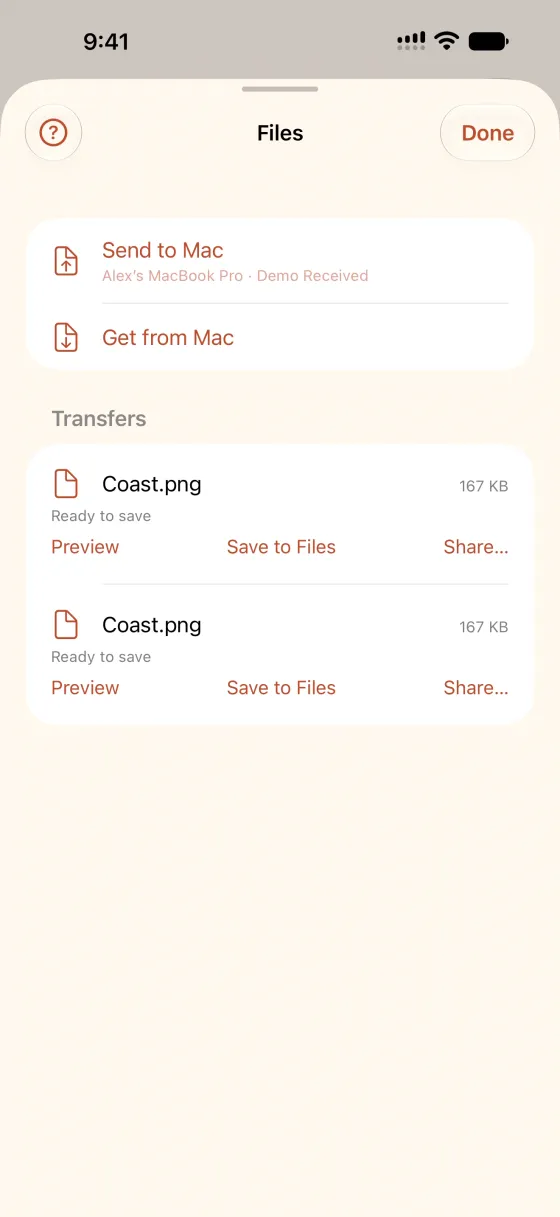
From the ⋯ menu, choose Files. Get from Mac browses folders you’ve shared; pick a file and tap Get File. Send to Mac drops a photo or file into the Takealong Inbox on your Mac.
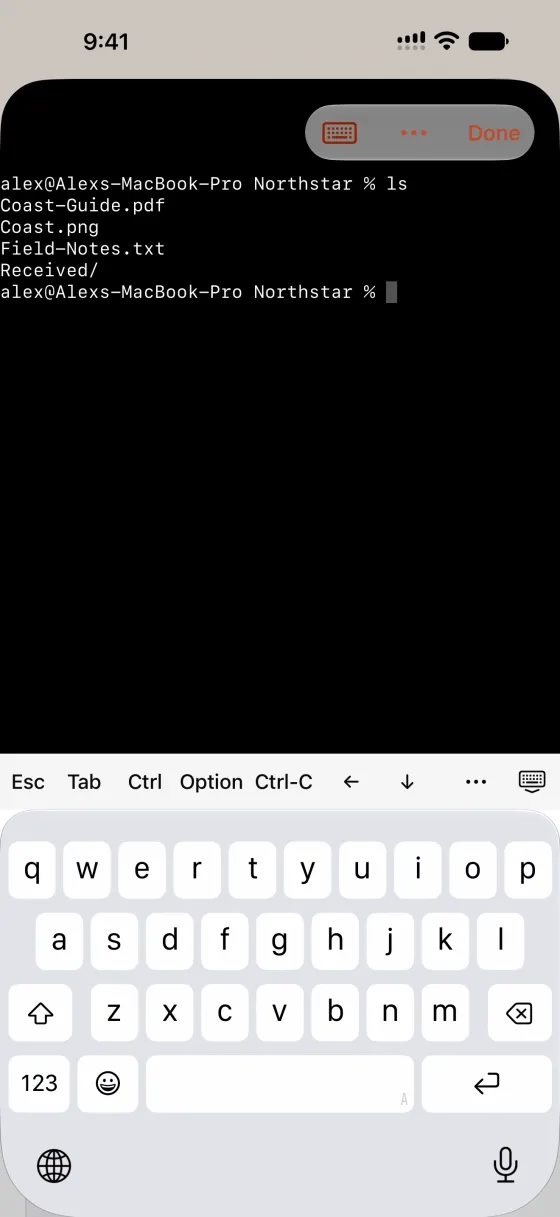
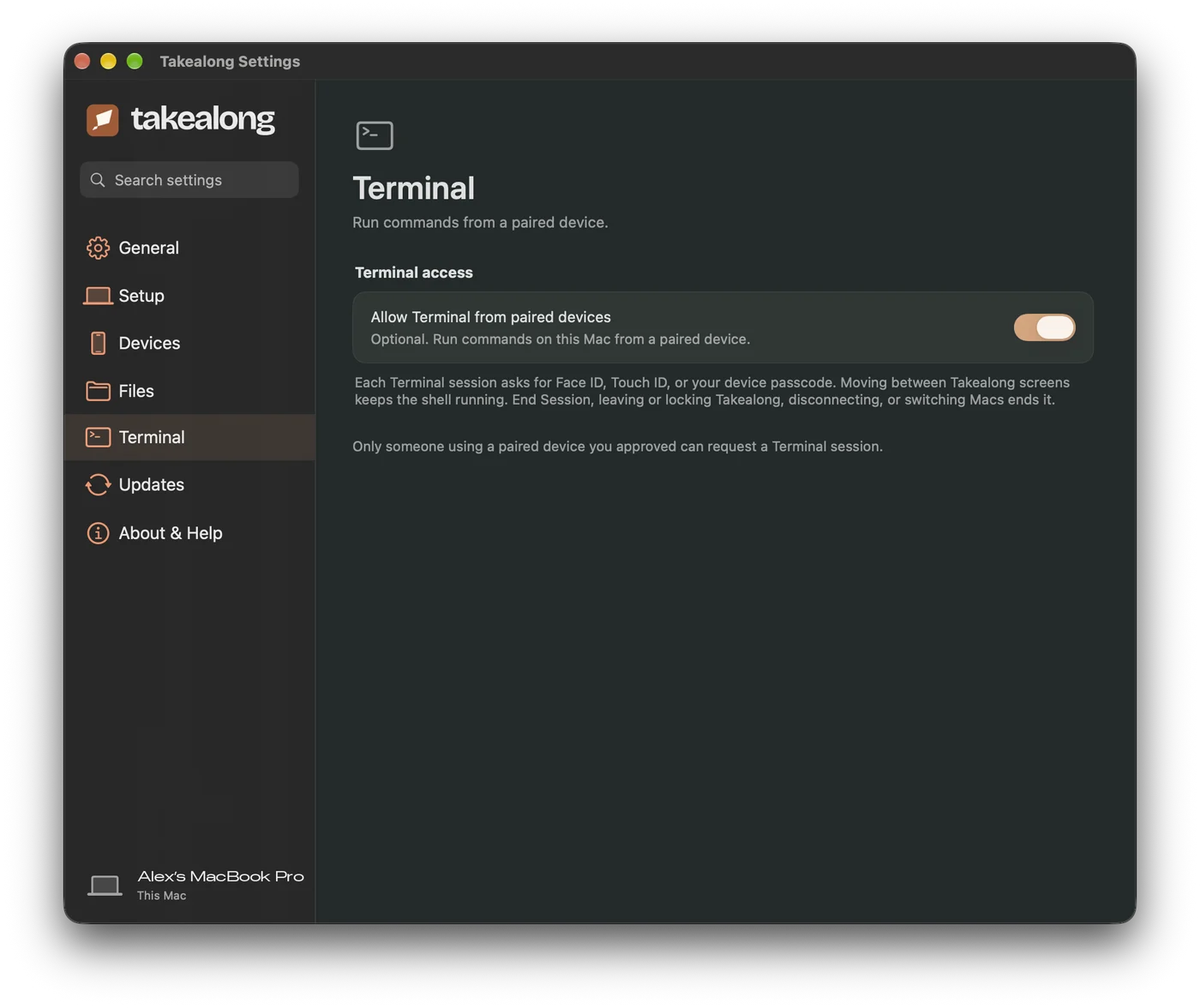
Turn on Terminal in the Mac app first. Then choose Terminal from the ⋯ menu for a real shell on your Mac, without streaming the screen. Face ID or Touch ID confirms it’s you.
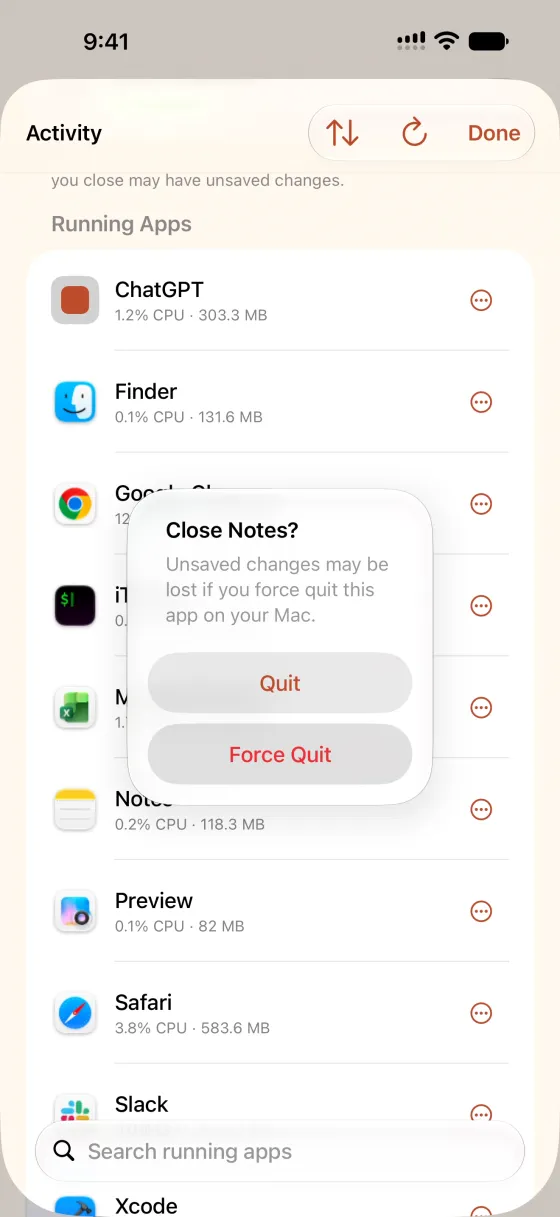
See what’s running on your Mac, with CPU and memory, and quit what’s stuck. Force Quit is there too, but unsaved changes may be lost.
If your Mac locks or restarts to the login screen, use Recovery Mode from Your Macs to sign in remotely, then carry on.
Check the Mac is awake, online and running Takealong (the kite is in the menu bar). At home, make sure both are on the same network and Local Network is allowed. Away, make sure Tailscale is connected on both.
Accessibility isn’t allowed yet. On the Mac, open System Settings → Privacy & Security → Accessibility and switch on Takealong.
Allow Screen Recording for Takealong in System Settings → Privacy & Security, then reopen the Mac app.
Install Tailscale on both devices and sign in to the same account, or add your Mac’s VPN address. Keep the Mac powered and connected while you’re out.
Tools that operate your Mac for you can put a full-screen cover over it while they work. The common one is ChatGPT/Codex Locked use (“ChatGPT is Using Your Mac — Press any key or click to unlock”). It often ignores remote clicks and keys, from Takealong and from other remote apps alike. It’s a known issue on OpenAI’s side, not something Takealong can lift on its own.
osascript -e 'quit app "ChatGPT"'. Neither needs to see the screen. Quitting stops its tasks.To prevent it: stop computer-use tasks before you leave your Mac, or turn off Locked use in ChatGPT → Settings → Computer Use if you rely on reaching your Mac remotely.
Use Recovery Mode (above) to sign in, or unlock it in person. Turning on Open at login brings Takealong back after a restart.
Only folders you’ve shared appear. Choose them under Shared folders in the Mac app.
Email support@takealong.app and tell me what you see. Screenshots help. Mac updates arrive through the app; you can also choose “Check for Updates” from the menu bar kite.